Troubleshooting
IPTV Buffering: Wi-Fi and Ethernet Troubleshooting
Work out where IPTV buffering comes from (device, app, Wi-Fi, Ethernet or other activity on your network) and what to send support if it continues.
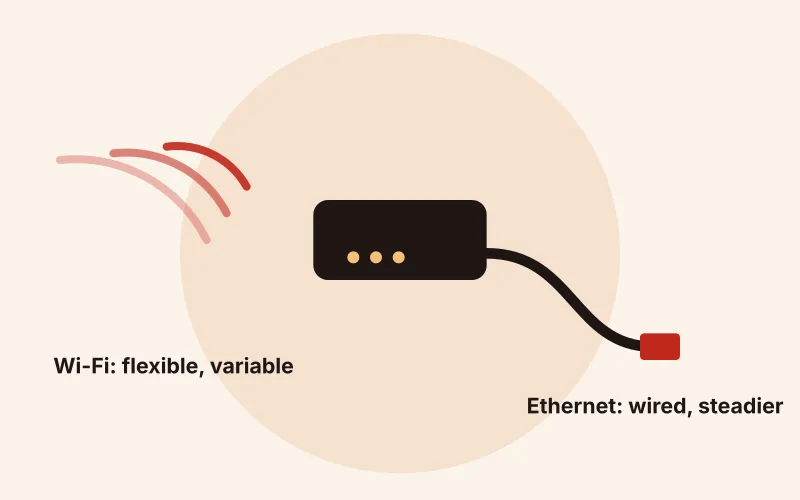
The short answer
Find out how widespread the problem is, then work outwards: device → app → Wi-Fi → Ethernet test → other network activity → broadband line. Change one thing at a time and note the result. No single connection speed fixes every problem, because every link in the chain matters.
Step 0: How widespread is it?
- One channel only? Probably not your network. Note the channel and time and report it.
- Every stream in one app, but other apps are fine? Look at the app (step 2).
- Everything on this device, but phones are fine? Look at the device and its Wi-Fi (steps 1 and 3).
- Everything on every device? Look at the router and broadband (steps 5 and 6).
Step 1: The device
- Turn it off at the wall for a minute, then back on.
- Install any system update (see the device guides).
- Check free storage and remove apps you do not use.
- Sticks behind a TV often get weak Wi-Fi. An HDMI extender can help.
Step 2: The app
- Update it from the official app store.
- Clear the app’s cache if the device allows it.
- Try a few different streams to see whether it is one source or all of them.
- Reinstall the app as a last resort, noting your login details first.
Step 3: Wi-Fi
- Restart the router: Ofcom suggests turning it off for about 30 seconds.
- Place the router centrally and off the floor, away from other electrical items. Walls, mirrors and metal weaken the signal.
- If your router offers both 5 GHz and 2.4 GHz, 5 GHz is usually faster at short range, while 2.4 GHz reaches further.
- For large homes, a mesh system can extend coverage. Ofcom notes that Wi-Fi can never be faster than the broadband feeding it.
Step 4: Test with Ethernet
A wired connection removes Wi-Fi from the equation. Connect the TV or stick to the router with a cable (some sticks need an adapter) and play the same stream at the same time of day.
- Fixed on Ethernet? The issue is your Wi-Fi. Keep the cable, move the router, or improve coverage.
- Still buffering on Ethernet? Move on to network activity and your broadband line.
Step 5: Other activity on your network
Everything in the house shares the same connection. Pause large downloads, game updates, cloud photo backups and video calls, then test again. Turn off Wi-Fi on devices nobody is using, since phones and tablets often work in the background.
Step 6: Your broadband line
Run a speed test on a device connected by cable, several times over a few days and at different times. Ofcom recommends using an accredited checker. If speeds are consistently well below what your provider promised, contact the provider: Ofcom explains your rights when speeds fall short.
What to send support
If buffering continues, this information helps UK Stream Hub narrow it down quickly:
- Device make, model and software version
- Player app name and version
- Connection type (Wi-Fi or Ethernet) and the result of the Ethernet test
- A recent speed test result, with the time it was taken
- Which channels or streams are affected, and when
- Whether other apps on the same device also buffer
- Any error message, in the exact words shown
Official sources
Related guides
All guides · Plans · Devices · Free trial
-
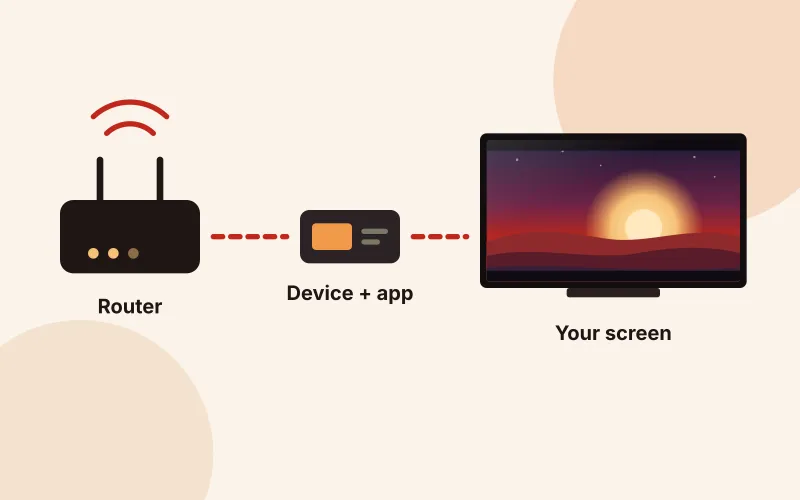
What Is IPTV? A Practical Guide for UK Viewers
Player apps, subscriptions, devices and connections explained in plain English. -
UK IPTV Prices: How to Compare Subscription Plans
Read totals and monthly equivalents correctly, and add the costs a price leaves out. -
IPTV Free Trial UK: What to Check Before Choosing
Questions to ask first, then a timed checklist for testing a trial properly.